FAQ Tablet class
order
Placeholder
When will my order arrive?
Please refer to the order confirmation for delivery times. For collective deliveries to schools, a delivery date will be agreed with the school. The school will inform you directly about the further procedure.
When will I receive my invoice?
You will receive your invoice after delivery. The time varies depending on the shipping agreement made.
For collective deliveries to schools, the invoice is sent to the school by email from the date of dispatch.
For private shipments, the invoice is sent by email from the date of handover to DHL. At the same time, you will receive a shipment number for tracking purposes.
I would like to return / cancel my order
Please note that cancelations or revocations can only be accepted in writing by e-mail - a telephone call is not sufficient. Once your request has been processed, you will receive a confirmation by e-mail.
Further information can be found here
No access to the order portal / login failed
The order portal has been set up especially for your school and is only open for a limited period of time. After this period, the access password loses its validity. Please refer to your school's letter to parents for the exact ordering period.
Important notes on using the order portal:
- Enter the link without "www."
- Den Link bitte nicht in einer Suchmaschine eingeben.
- Only enter the link in the address line of your Internet browser.
After expiry of the order period:
If the order period has already expired, but the shipping date is still imminent, you still have the option of placing your order directly via www.tabletklasse.de directly. Your school will be queried during the ordering process - your order will then be assigned to the collective delivery to the school.
Please note that in this case a processing fee of € 7.90 will be charged. This is shown as a shipping fee in the order process.
Installment purchase cannot be selected
Please note that 0% financing can only be offered up to a maximum purchase price of €1,500.
If the total amount of your order exceeds this value, you have the option of splitting your order into two separate transactions. We will then combine them and send the items in a single delivery.
Why do I have to select mandatory articles?
It is important to your school that all pupils are uniformly equipped with the intended accessories. If you already own individual accessories, please note this in the comments field during the ordering process.
We can subsequently remove the relevant items from your order. The purchase price will of course be refunded. You will then receive an updated order confirmation.
How can I be sure that my order will reach my child?
During the ordering process, your customer details and the student's name will be requested. We use this information to ensure that your selected items reach your child.
Can I place an order for siblings?
You can of course place a joint order for several children. If there are differences in the color of the devices, please indicate in the comments field during the ordering process which iPad should be assigned to which child.
Alternatively, you also have the option of placing separate orders for each child.
If you have selected Zinia installment purchase, please note that the purchase price must not exceed 1500€.
Is there a twin discount or discounts if you have more children?
The iPads on offer already include an educational discount. Please understand that no additional discount can be granted for orders for several children.
When will I get my grant back?
If you have any questions about financial support, please contact your school directly or the municipality or city in which you live.
Please note that funding applications are not issued or processed by us - nor are payments made via our company.
I have already bought an iPad, can I insure it retrospectively?
You can insure your iPad through us at any time - regardless of whether you bought the device from us or from another provider.
To take out the insurance, we need a copy of the iPad invoice, which you should send to us by e-mail.
Please note:
- Refurbished Geräte (generalüberholt) können nicht versichert werden.
- Das iPad darf nicht älter als zwei Jahre sein.
Order revocation
If you have already received your order and are not satisfied, you have a 14-day right of withdrawal.
Please send us an e-mail in advance with your order number and a brief description of the items you wish to return.
Return address:
ACS Group GmbH
Returns Center
Otto-Hahn-Str. 38A
85521 Ottobrunn
Complaints - Accessories
Placeholder
The article does not fit
If you discover after receiving your order that an item does not fit, please inform us promptly about the desired exchange or return of the item. You can do this either by e-mail or by returning the item to the following address:
ACS Group GmbH
Returns Center
Otto-Hahn-Str. 38A
85521 Ottobrunn
Please always enclose your order number to ensure fast processing.
Logitech Crayon defective (no longer writes) What can I do?
The Logitech Crayon has an LED display that indicates the battery level. To check the battery level, simply slide the on/off button to the side.
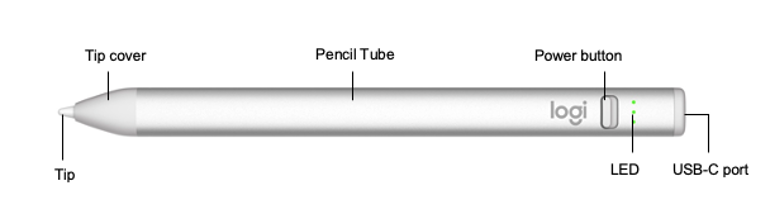
| LED color | Status |
| 3 green LEDs | The battery charge is sufficient and is over 66 % |
| 2 green LEDs | The battery charge is sufficient and is over 33 % |
| 1 green LED | The battery charge is sufficient and is over 15 % |
| 1 red LED | The battery has less than 15% charge and must be recharged as soon as possible |
Important notes on using the Logitech Crayon
1. check battery status:
If the LED lights up red when you first switch on the Logitech Crayon, please charge the battery before using the device.
2. ensure compatibility:
Make sure that you are using a suitable iPad. The Logitech Crayon is compatible with the following iPad models (from 2018):
1. iPad Pro
2. iPad Air
3. iPad mini
4. iPad
Your iPad must also be updated to iOS 11.4 or higher. You can check the iOS version in the iPad settings under General → Software.
3. Disconnect from other pens:
To use the Crayon, all previously connected digital pens (e.g. Apple Pencil®) must be disconnected. To do this, go to iPad settings → Bluetooth and disconnect the device to be deleted.
If you do not want to delete the connection to other pens, you can also simply deactivate Bluetooth® before using the Crayon.
4. LED indicator:
Slide the on/off button down. If the LED lights up green, the Crayon is ready for use. If the LED lights up red, the Crayon needs to be charged.
Pen tip replacement set
- If the pen tip of the Logitech Crayon is damaged, you can order a replacement set directly from Logitech. The set contains 10 pen tips and a tool to remove the tip cover of the Logitech Crayon.
To replace the pen tip:
Use the supplied Pen tip removal toolto remove the damaged tip and replace it with a new one.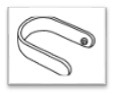
1. alternatively, you can also use a Paper clip to remove the pen tip.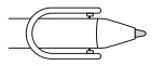
6. squeeze the tool together and pull off the tip cover.
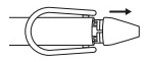
7. turn the pen tip counterclockwise to remove it.
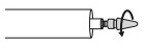
8. insert the new pen tip and then turn it clockwise to tighten it.
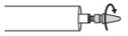
9. replace the tip cover. You should hear a click.
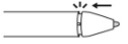
Logitech Crayon battery life
- Charging time: It takes 60 minutes to charge the Logitech Crayon from 0% to 100%.
- Usage time: The Logitech Crayon offers up to 7 hours of active usage time after a full charge.
- Charging: The Logitech Crayon is charged via the iPad USB-C cable.
Can I use my Logitech Crayon while it is charging?
Logitech iPad keyboard case no longer works
If your Logitech keyboard case exhibits one or more of the following symptoms:
- The keyboard or touchpad does not respond when typing or moving the cursor
- The keyboard or trackpad sometimes works, but always fails
- The keyboard or touchpad responds slowly
Check the following:
1. make sure that the physical connection is well secured.
2. clean the Smart Connector area if necessary.
3. check the iOS version and make sure that your iPad is up to date.
If a problem persists, download the Logitech Control App and check if the keyboard firmware needs to be updated.
With the Logitech iPadOS app, Logitech Control, you can update the Combo Touch firmware. You can find the app in the Apple App Store on your iPad.
Start the Logitech Control app with the Combo Touch keyboard connected to check for firmware updates.
While the firmware is being updated, you must not use the keyboard or the touchpad. Make sure that the keyboard remains connected and the app is open. It is best to place the device on a flat surface and switch it to "typing mode". This reduces the risk of the connection to the keyboard being interrupted.
If the connection to the keyboard is interrupted or the app is closed during the firmware update, the update may not be completed and the functionality of your keyboard will be lost. In such a case, you can force the firmware update using the following steps:
1. open the Logitech Control app - make sure you are using the latest version available in the App Store.
2. on the keyboard image displayed in the app, place your fingers on the Q+W+E keys (as highlighted in the image below) and then touch or press the Globe button on the keyboard image (also highlighted in the image below).
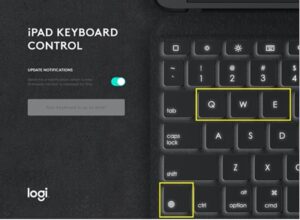
3. you will see that the text below the "Logi" logo changes to "Firmware update is unlocking" if the process was successful.
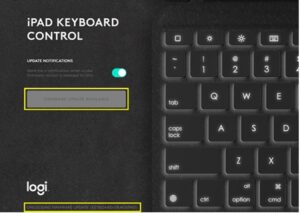
4. as soon as "Firmware update is unlocked" is displayed, tap the grayed-out FIRMWARE UPDATE AVAILABLE button.
5. the "New firmware" window opens - tap "Start update" to restart the firmware update.
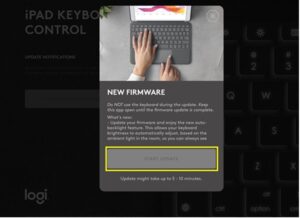
NOTE: Remember to keep the keyboard attached and the app open and not to use the keyboard and touchpad during the process.
If your Logitech keyboard cover still does not work, please contact us at tabletklasse@acsgroup.de to discuss the next steps.
During your warranty period, you also have the option of sending in the keyboard cover for inspection. We will check it and inform you about the next steps.
Tucano Tasto keyboard cover without function/ cannot be switched on
Make sure that the following is set correctly:
1. the On/Off switch on the side is set to ON.
2. Bluetooth on your iPad is switched on.
3. press the key combination "FN + C" to search for and select the Tucano Wireless 5.1 Keyboard in the Bluetooth menu.
4. the keyboard is now paired.
Check the charge level indicator:
- Press the button combination "FN + battery status symbol" to check the battery status.
- The battery status indicator flashes to indicate the current charge status:
o 1x red flashing: battery status from 0-25%
o 2x red flashing: battery status from 25-50%
o 3x red flashing: battery status from 50-75%
o 4x red flashing: battery status from 75-100%
- When charging is complete, the indicator lights up green.
- All other displays are shown with a red light, which indicates a low battery level.
Tucano Pencil without function / no longer writes
- Battery level: Please ensure that the Tucano Pencil is fully charged. The battery life is up to 15 hours on a full charge.
- Pen tip: Make sure that the pen tip is intact. We recommend changing the tip regularly to ensure optimal use. The Tucano Pencil comes with 2 replacement tips. You can order additional replacement tips in our webshop at tabletklasse.de in the accessories section.
- Customer service: If you have any further questions about your Tucano Pencil, our customer service team will be happy to help. Simply contact us at tabletklasse@acsgroup.de.
DEQSTER Rugged Touch cannot be switched on / charged
Please follow the enclosed instructions. The DEQSTER Rugged Touch must be actively paired via Bluetooth.
Setting up the connection:
- Press the on/off button twice firmly and quickly to switch on the DEQSTER Rugged Touch Plus Keyboard. You can also switch the device off with the same action.
- The Bluetooth, Shift-Lock, battery status and charge bar icons light up for 3 seconds.
- Go to "Settings" on the iPad.
- Go to the "Bluetooth" option in the settings menu and activate it.
- Switch to pairing mode on the DEQSTER Rugged Touch Plus Keyboard by pressing the "FN "+"C" keys. The Bluetooth symbol on the display starts to flash.
- "Deqster RTPK XXXX" is displayed in the available devices under the Bluetooth settings. Select it to establish the connection.
- Enter the displayed numerical code using the keypad and confirm with the Enter key.
- Successful pairing is confirmed by the "Connected" status in the device list.
If your DEQSTER keyboard cover does not work, please contact us at tabletklasse@acsgroup.de to discuss how to proceed.
During your warranty period, you also have the option of sending in the keyboard cover for inspection. We will check it and then inform you of the next steps.
Adonit Neo Stylus without function / no longer writes
- Battery level: Please ensure that the Adonit Neo Stylus is fully charged. The battery life is up to 9 hours when fully charged.
- Charging indicator:
- No light: The Adonit Neo is switched off.
- Blue light is on: The Adonit Neo is switched on or fully charged.
- Red light on: The Adonit Neo is not sufficiently charged.
If you have any further questions about your Adonit Neo Stylus, our customer service team will be happy to help. Simply contact us at tabletklasse@acsgroup.de
Lamy safari note + without function / no longer writes
- Battery level: Please make sure that the Lamy Safari Note+ is fully charged. The battery life is up to 10 hours on a full charge.
- Pen tip: Make sure that the pen tip is intact. We recommend changing the tip regularly to ensure optimum use. The Lamy Safari Note+ comes with 2 replacement tips. You can purchase additional replacement tips in our webshop at tabletklasse.de in the accessories section.
If you have any further questions about your Lamy Safari Note+, our customer service team will be happy to help. Simply contact us at tabletklasse@acsgroup.de.
Protective film / armored glass defective
If the protective film you ordered from us arrives defective, please inform us of this defect immediately via tabletklasse@acsgroup.de. We will arrange for a replacement to be sent as quickly as possible.
If bubbles have formed when applying the protective film or the film does not adhere properly to the iPad, please note the following:
Disclaimer: We accept no liability for protective films or protective glasses that have already been fitted.
Apple iPad or Apple accessories defective
Placeholder
Apple Pencil without function / no longer writes
- Battery level: Please ensure that the Apple Pencil is fully charged. Please note the respective specifications of your Apple Pencil model.
- Pen tip: Make sure that the pen tip is intact. We recommend changing the tip regularly to ensure optimal use. The Apple Pencil comes with 2 replacement tips. You can purchase additional replacement tips in our webshop at tabletklasse.de in the accessories section.
If you have any further questions about your Apple Pencil, our technical support team will be happy to help. Simply contact us at support@acsgroup.de.
Magic Keyboard without function
If you have any questions about your Apple Magic Keyboard, please contact our technical support team at support@acsgroup.de
iPad without function / defect
Dropped your iPad and taken out insurance?
If your iPad has been dropped and you have taken out insurance through us, you will find all the necessary documents here to send your iPad to us for processing. We will take care of the smooth process and correspondence with the insurance company.
Service fee: A service fee of €25 is charged for this service. After a successful exchange, you will receive your new iPad back in the same configuration.
Please inform us in advance about the defect at support@acsgroup.de.
Further information:
Das Formular zur GoodNotes Datensicherung finden Sie hier.
You can find the damage report form here.
You can find a FAQ and information on insurance claims here.
Administration
Placeholder
What actually is DEP?
With the Device Enrollment Program (DEP), your device is integrated into the school's remote administration. This allows you to make default settings and install selected apps that are required for teaching.
What does MDM mean?
Mobile Device Management (MDM ) supports the use of iPads in the classroom. All iPads can be equipped with the apps required for teaching at the same time via MDM. In addition, the restricted usability of the private profile is controlled. This allows students to concentrate fully on their lessons without being able to access private apps.
My child has left school, we would like to continue using the iPad privately
If your child needs to be removed from Mobile Device Management (MDM), we ask the school to contact us directly and let us know. Our colleagues in the iPad management team will take care of your request as quickly as possible and ensure the appropriate removal from the MDM.
Why do I need a license?
Mobile Device Management (MDM ) ensures that all the necessary apps are automatically installed and updated so that the iPad can be used smoothly in the classroom and all the apps required by the school are always up to date.
Why do I have to pay for the license?
The license for the required apps is specified by the school and is required for all students. When ordering via our online store, the required licenses will be added to the existing order. The order confirmation will indicate that there is still an outstanding payment for the licenses.
Why can't I set a screen time?
Screen time could block the use of the iPad during lessons, which would result in your child being unable to continue working. To prevent this, we ask you to refrain from activating screen time during lessons.
Existing devices
Placeholder
Do you have your own iPad and want to use it for school purposes?
If a subsequent DEP set-up has been agreed with your school, you can place your order via the school store or directly via www.tabletklasse.de.
Die nachträgliche DEP-Registrierung können Sie hier durchführen:
Important: Please do not send in your iPad without an order. Without an order, we cannot integrate your iPad into the school's DEP, which would delay the process.
Why do I have to send in my private iPad?
We need the iPads on site in order to manually integrate them into the school's DEP. This process cannot yet be carried out over the air.
I have a refurbed device can I send it in?
We advise against sending in refurbished devices. We cannot guarantee that these devices can be integrated into the school's DEP. It is possible that the iPad is still in the administration of another school. In this case, de-registration by us is not possible
Why is it not sent to me privately as it is my property?
As long as a collective delivery has been agreed with the school, all devices - whether new or private - will be sent together. Please contact the school directly for any exceptions.
Warum muss ich mein iPad zurücksetzen?
To ensure that the DEP registration is correctly linked to your device, the iPad must be reset to factory settings. Please ensure that no backup is restored after the reset to prevent the link from being overwritten.
Why shouldn't any accessories be sent?
You are welcome to leave the protective cover on your iPad. Additional accessories are not required and would mean unnecessary extra work for us.
Why is it being sent to the school despite a flat-rate shipping fee?
In the event that a collective delivery has been agreed with your school, but your order was not placed via the school store, we will incur additional costs. We therefore reserve the right to retain a lump sum.
Do I need an appointment to drop off my iPad?
You are welcome to drop off your iPad during our opening hours:
Mon-Thu: 9:00 - 18:00
Fri: 9:00 - 16:00
Please note that you have already placed an order with us for subsequent DEP registration. You will need the form that you will find in the order confirmation e-mail.
Data protection
Placeholder
What do you see on my iPad?
The devices are either managed by the school itself or by our iPad manager team on behalf of the school . Only the following information can be viewed as part of this management:
- First and last name
- E-mail address (optional, e.g. when using Jamf Parent)
- Class (optional)
- Location information (based on the IP address)
- Service life of the device
- Device type and unique device identification number
- IP address
- System language
- Origin (e.g. country of use)
- Installed applications
- Operating system version
- Battery charge level
- Available storage space
Important: It is not possible to view private content or the use of private apps - neither by us nor by the school.
Important information and FAQs on insurance claims
Placeholder
When does follow-up insurance make sense?
Follow-up insurance may be advisable in the following cases:
- The contract was fulfilled in full following a loss.
- This is already the second case of damage.
- The term of the existing insurance contract ends soon.
- No insurance has been taken out to date
How often can I claim on the insurance in the event of a claim?
Apple does not provide for repair in the traditional sense for iPads. Regardless of the defect, a replacement deviceis always provided. The defective device will be sent back to Apple and you will receive a replacement device of the same design.
Please note:
Such a replacement is generally considered a total loss under the insurance policy and is covered once by the contract taken out.
Important: In many cases, we may - after individual consultation with Wertgarantie - process a second claim under the same contract. This option is a goodwill gesture on the part of the insurance company for our customers and does not constitute an obligatory or enforceable claim.
Insurance, warranty or third-party fault - what applies when?
You have taken out insurance, but the defect on your iPad is covered by the warranty or guarantee - or was caused by a third party?
- Guarantee or warranty cases:
If possible, we carry out repairs primarily within the scope of the guarantee or statutory warranty
If the damage occurs outside these periods or if it is material damage that is not covered, it will be processed via the insurance contract taken out. - Replacement device under warranty:
In the event of a replacement, we will report the new serial number to the insurance company. Your contract will continue to run without interruption. - Damage caused by a third party:
If the damage was caused by a third party and you do not wish to make a claim on your insurance, we will be happy to provide you with a cost estimate in advance for the party responsible or their insurance company.
Once you have placed your order, we will send the serial number of the new device to the insurance company - your contract will continue as normal in this case too.
Why is the date of damage to be indicated?
An excerpt from the insurance conditions:
"4.1 The policyholder must notify the insurer of an insured event in text form without delay, at the latest within 1 month of its occurrence (...). If the device is defective, a cost estimate from a specialist workshop must also be submitted."
The following applies to ACS Group customers:
It is sufficient if you send us the defective device within 4 weeks of the date of damage. We will prepare a cost estimate and take care of the settlement with the insurance company. The prerequisite for this is that we know and can document the exact date of the damage.